Job Orchestration System: Data Ingestion (Loading Data)
This guide explains how to use the HydroServer Job Orchestration System to load data from a remote data source. This type of task is an ingestion task, also called an ETL data loading task. HydroServer's Job Orchestration System runs these tasks offline on a user-defined schedule so their execution does not affect the performance of HydroServer's web server.
We illustrate data ingestion tasks with two specific examples:
- Loading data from a comma-separated values (CSV) file or LoggerNet
.datfile - Loading data from an application programming interface (API) into HydroServer datastreams
ETL means:
Extract → Transform → LoadIn HydroServer, this means:
Extract data from a remote source file or API
    ↓
Transform the data by parsing the source file and mapping to HydroServer datastreams
    ↓
Load observation values into HydroServerNOTE: The Job Orchestration System lets you set up any number of data ingestion tasks. You have some flexibility in determining the granularity of the tasks that you set up. For example, if you have a CSV data file that has 10 columns of data in it (each one representing a datastream), you can create 1 task to load data for all 10 columns or you could create 10 tasks, each of which loads data for one column.
1. Before You Begin
Before creating a data ingestion task, make sure the following items already exist in HydroServer:
- A workspace where you have permission to create and manage content
- A monitoring site where the observations will be stored
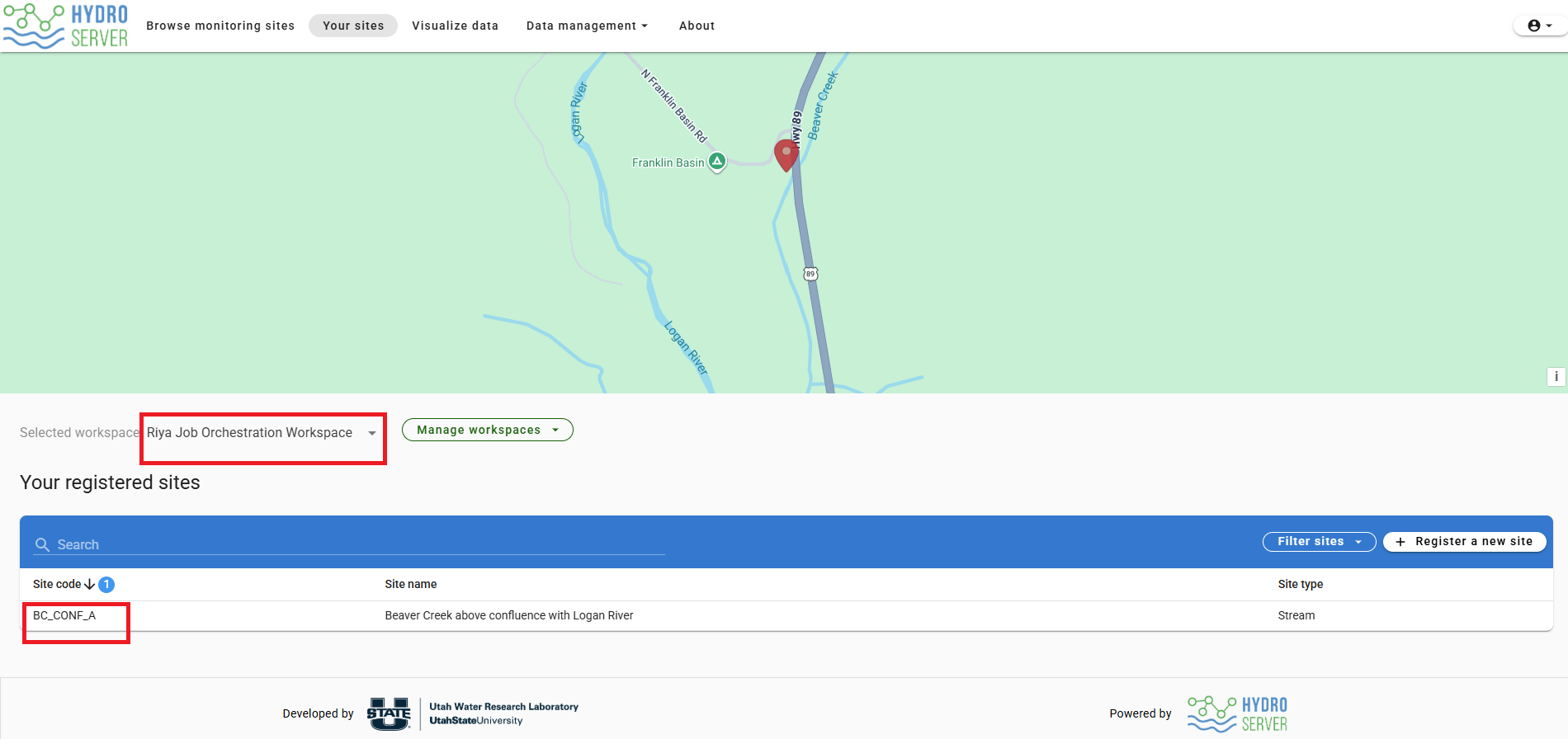
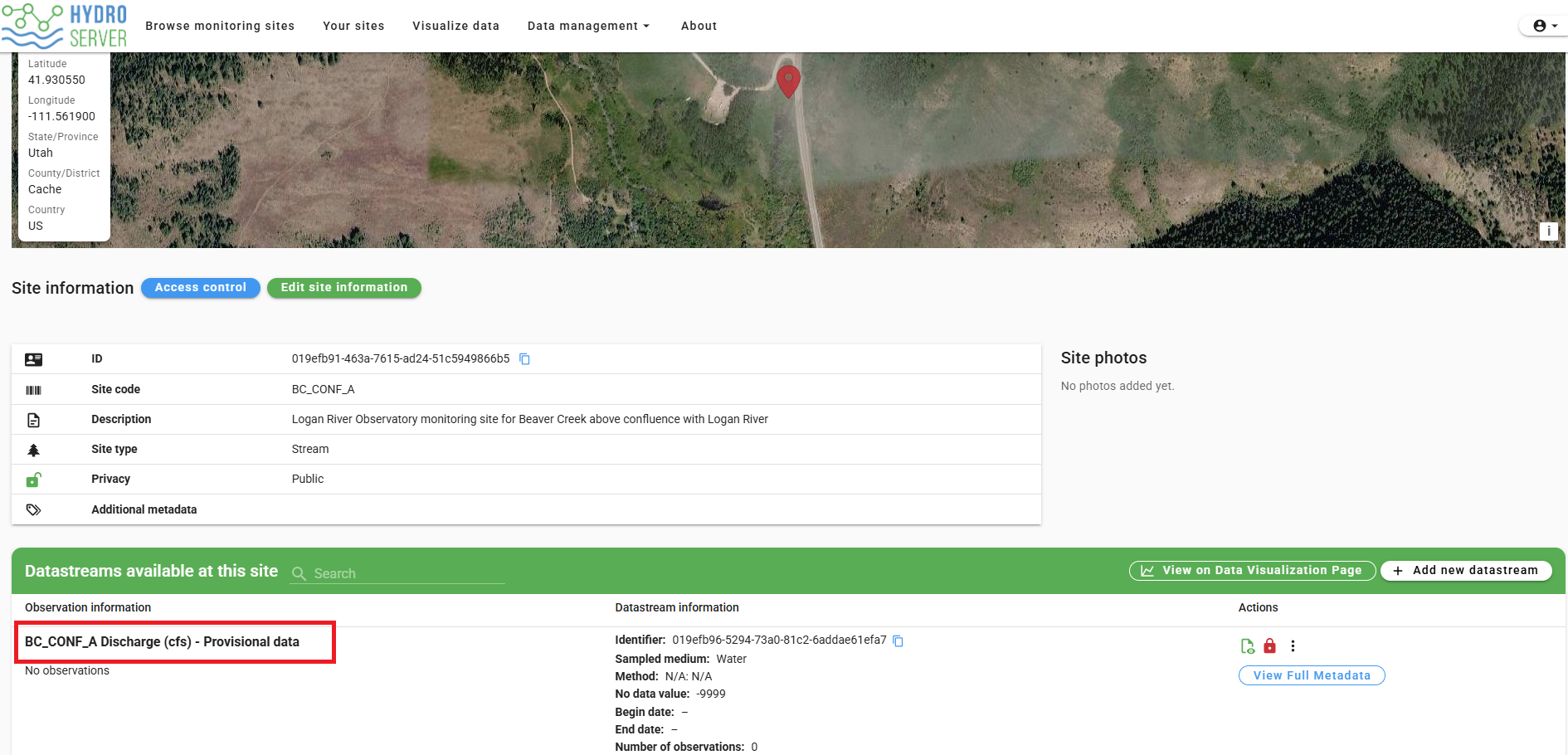
- One or more datastreams where the imported data values will be loaded
- A remote source file or URL that HydroServer can access
NOTE: The Job Orchestration System assumes that you have created the metadata for your site and datastreams before you use ingestion tasks to load data.
NOTE: The Job Orchestration System is not set up to upload a file from your local computer. Instead, it reads data from a remote file available via a source URL or from an API endpoint. The source URL must point to a file or API endpoint that HydroServer can access online, such as a remote CSV file or a Campbell Scientific LoggerNet .dat file. To load files stored on your local computer, use HydroServer's Streaming Data Loader.
Example source URL for a CSV data file:
http://example-server.org/data/station_data.csvFor a Campbell Scientific LoggerNet data file, the source may look like this:
http://example-server.org/data/CR800_Station_Data.dat2. Open the Job Orchestration Page
In HydroServer, go to the top navigation menu and select: Data management → Job orchestration
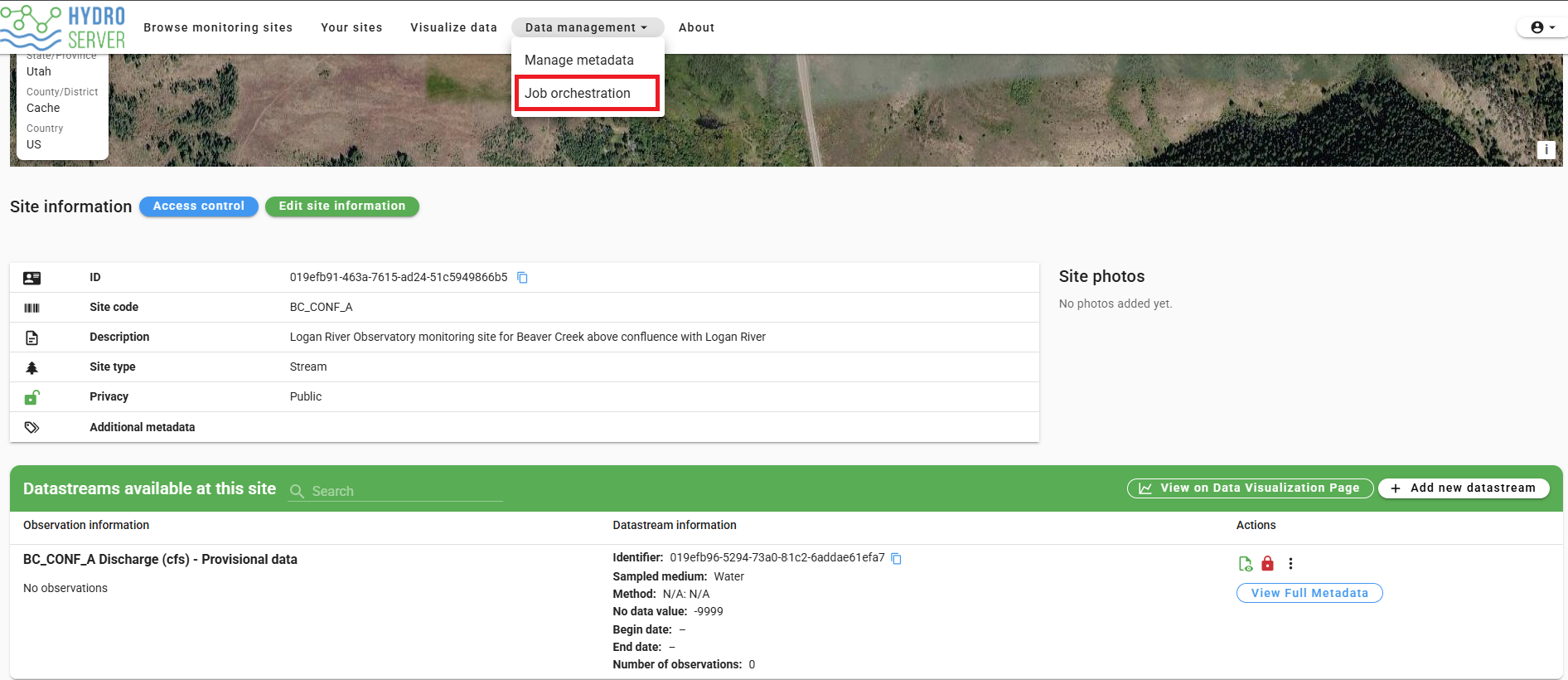
This opens the Job Orchestration page. On the left navigation rail, select Ingestion.
3. Example 1: Create a New Data Connection for a CSV File
A data connection tells HydroServer where the source data are located (e.g., a remote data file or API endpoint) and how the source file should be read. On the Ingestion page, click the blue plus button next to Connections. A window titled Create a new data connection will open.
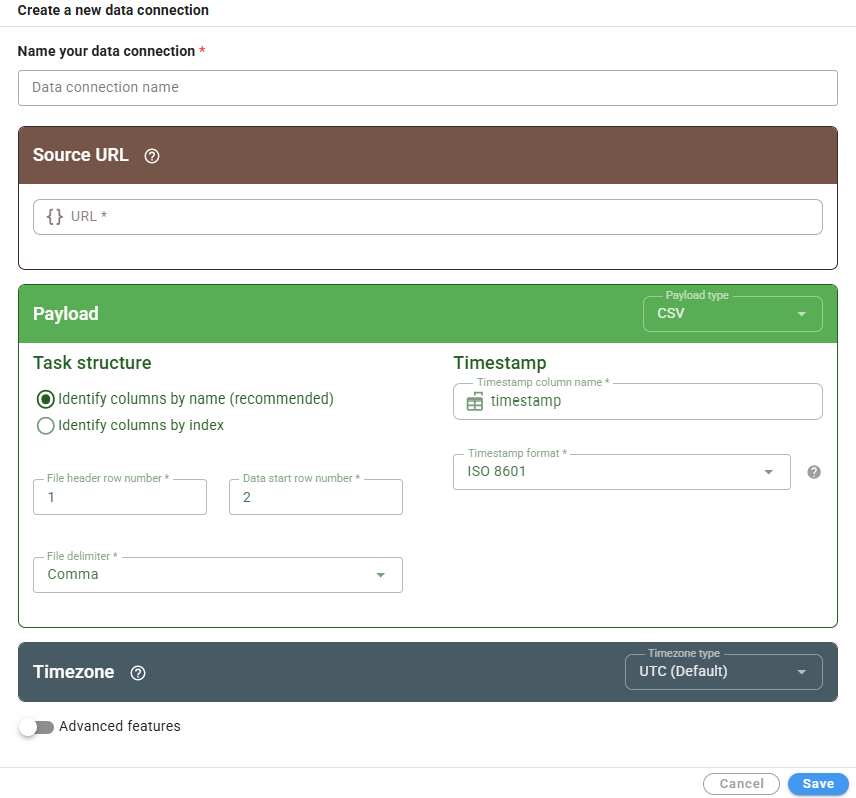
To create a data connection, first enter a clear name that helps identify the source file or station. Then paste the remote source URL into the Source URL field. The source URL should point directly to the raw data file, not to a preview webpage. When opened in a browser, the URL should show the data as text with rows and columns.
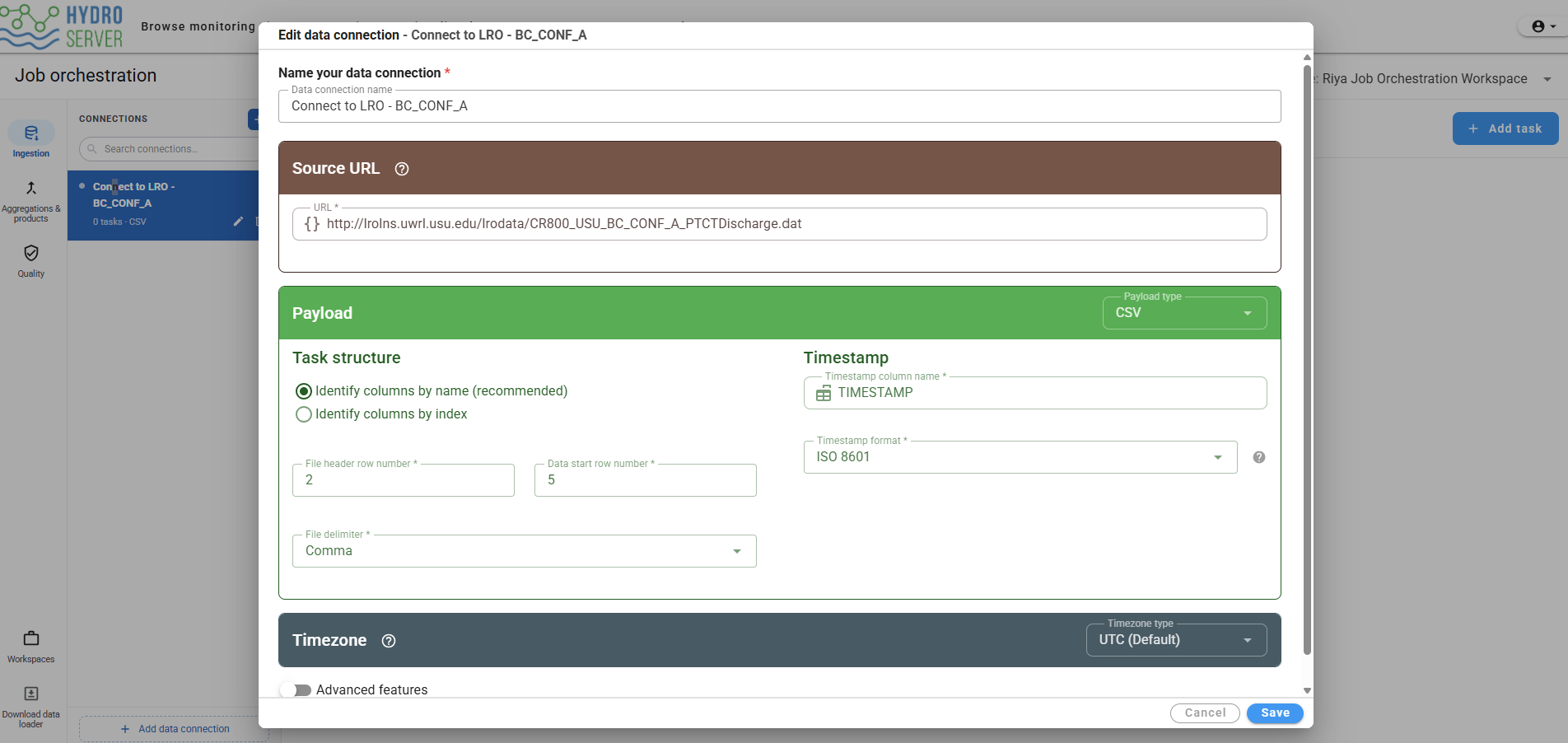
In the Payload section, choose the payload type based on the source file format. For most CSV-style files and LoggerNet .dat files, select CSV. If the file has column names in a header row, select Identify columns by name. Then enter the correct file header row number and data start row number. The header row is the row that contains the column names, and the data start row is the first row that contains actual observation values.
NOTE: The "Identify columns by index" option should be used if your file does not have a header row with column names. In this case, columns will be referenced by their integer order (starting with 1).
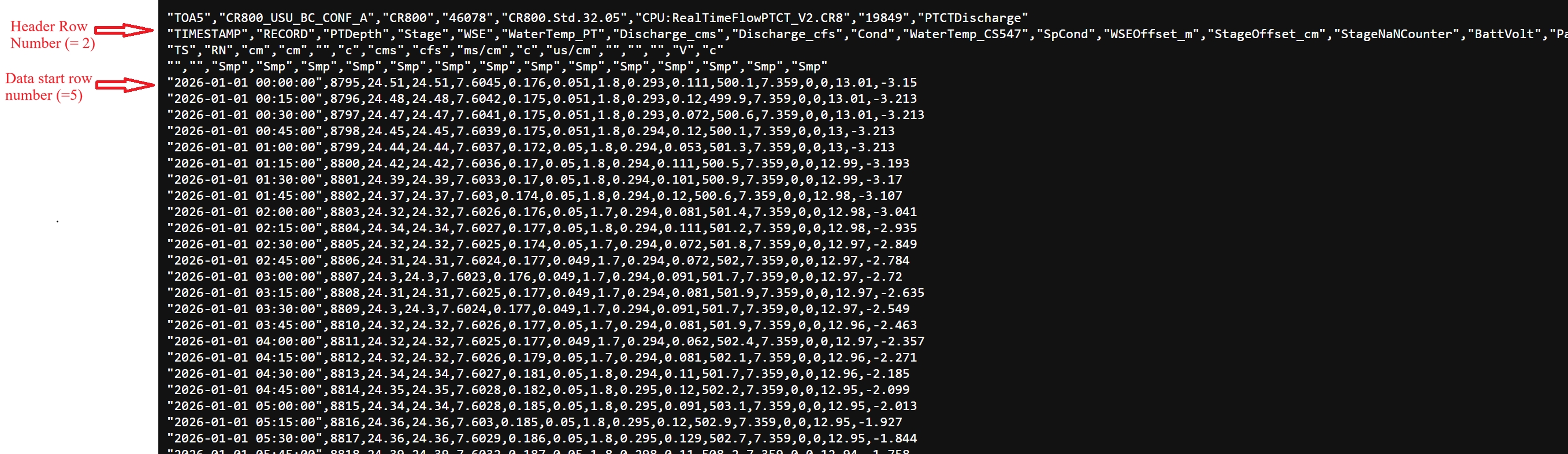
Next, select the file delimiter. Use Comma for comma-separated files and Tab for tab-delimited files. Other delimiters are available if your file uses a less common delimiter.
Data Connection Timestamp Settings
In the Timestamp section, enter the exact name of the timestamp column as it appears in the source file, such as TIMESTAMP, ResultTime, or timestamp. The capitalization must match the source file. If you are using the "Identify columns by index" option, specify the column number containing the timestamp values.
Select ISO 8601 if the timestamps use the standard ISO 8601 date/time format. In the Timezone section, use UTC (Default) if the source file already uses UTC timestamps or includes a UTC offset.
NOTE: HydroServer stores all datetime values in its underlying database using UTC. Because of this, it is critical that you correctly specify the format and timezone of your input timestamps. For example, if the source file uses local time (e.g., Mountain Standard Time in the U.S.) without a timezone offset, select the correct timezone or offset so HydroServer can convert the timestamps to UTC.
NOTE: You can choose "Custom format" for the Timestamp format setting if your data file contains non-standard timestamps. In this case, you must specify a valid Python strftime date format string that matches how the timestamps in your file are formatted.
Advanced Features
If you toggle the "Use Advanced features" option, you can add a description to your data connection. You can also add an authentication header if you are connecting to an API that requires authentication. Finally, you can specify a list of email addresses for people who should be notified if tasks associated with the data connection fail to execute. You can add any number of email addresses for notification recipients.
After all settings are filled in, click the Save button at the bottom of the form. The data connection you just created will appear in the left-side Connections list.
At this point, HydroServer knows:
- Where the source file is located
- How to read the file
- Which row contains the column names
- Which row contains the first data value
- Which column contains the timestamps
However, the data connection alone does not load data into a datastream. You must create one or more ingestion tasks that define the data file column-to-HydroServer datastream mapping.
4. Add an Ingestion Task
Click the data connection you created. Then click the Add task button at the top right. The Add task window will open.
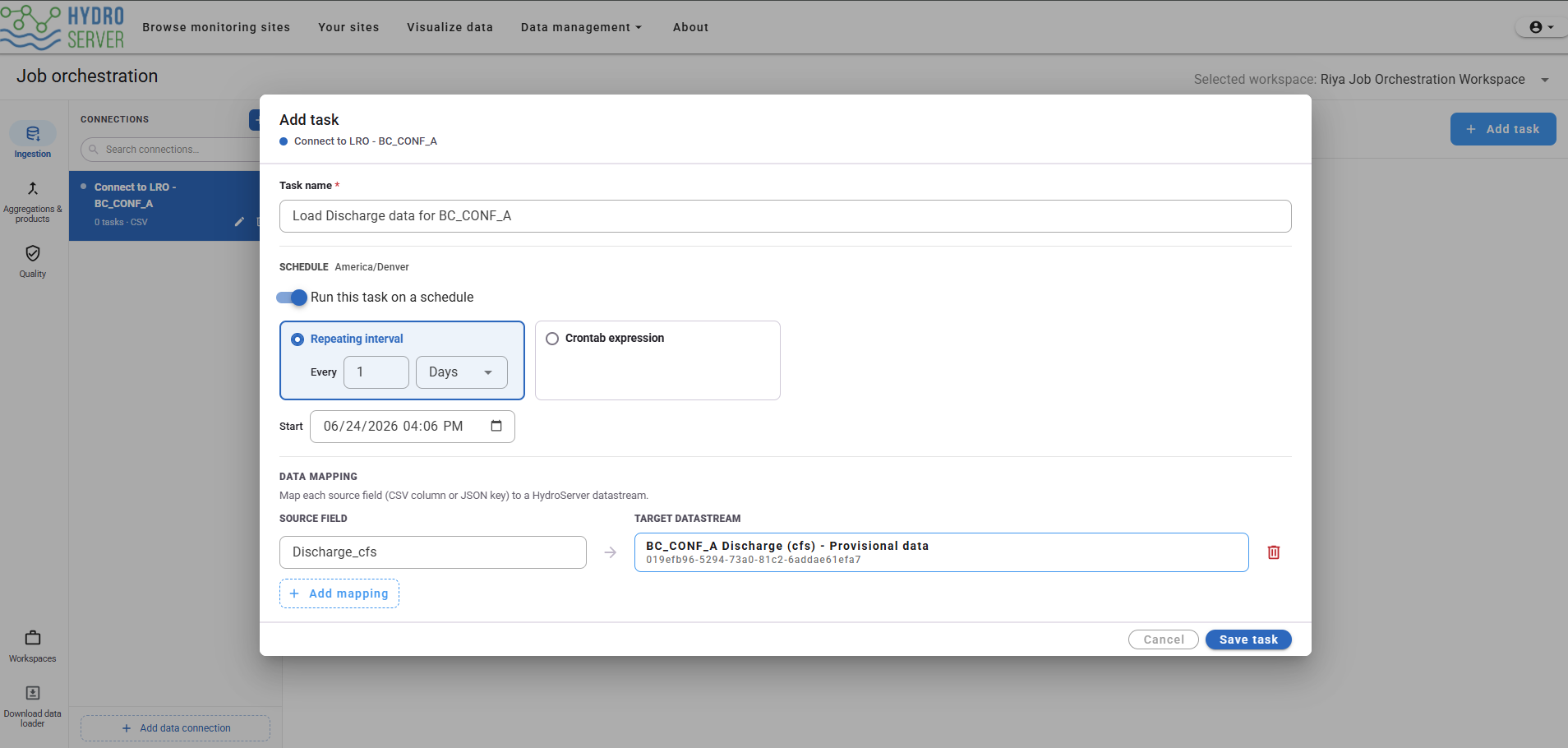
Enter a clear task name that describes what data will be loaded, such as Load Snow Depth Data or Load Discharge Data for BC_CONF_A. The task name should be specific enough that users can understand its purpose later, especially when there are multiple ingestion tasks in the same workspace or for a single data connection.
Task Scheduling
In the schedule section, the task can either be run manually or on a repeating schedule. For initial testing, it is usually better to turn the schedule off and run the task manually first to make sure it works correctly. This allows you to confirm that the source URL, timestamp settings, and data mappings are correct before the task starts running automatically. After the task has been tested successfully, a schedule can be enabled, such as running every day, every hour, or using a crontab expression.
Scheduled tasks can either run on a user-defined interval (e.g., 1 hour or 1 day), or use a crontab expression. If you choose the "Repeating interval" option, specify the interval, its units, and the task's start time. It will continue to run at that interval until you pause or delete the task.
NOTE: HydroServer will execute the task on the interval that you set. However, networking delays or other issues in the way tasks are run may cause small amounts of time drift. After the first task run, subsequent runs may run close to, but not exactly on the interval you set.
For a more precise specification of task run times that is not subject to drift, you can use a crontab expression to set the schedule on which tasks will be run. A crontab expression is a string of five fields separated by spaces that represents a schedule for running a command. The standard crontab layout looks like the following:
┌───────────── minute (0 - 59)
│ ┌─────────── hour (0 - 23)
│ │ ┌───────── day of the month (1 - 31)
│ │ │ ┌─────── month (1 - 12)
│ │ │ │ ┌───── day of the week (0 - 6) (Sunday to Saturday)
│ │ │ │ │
* * * * * <command to execute>
The five core fields are:
- Minute: The exact minute the command runs.
- Hour: The hour of the day in 24-hour format.
- Day of month: The specific calendar day.
- Month: The month of the year.
- Day of week: The day of the week (0 and 7 are both Sunday).
Common Special Characters:
- * (Asterisk): Every possible value.
- , (Comma): A list of specific values (e.g., 1,3,5).
- - (Hyphen): A range of values (e.g., 1-5).
- / (Slash): Step values or intervals (e.g., */15 means every 15 minutes).
Examples:
0 0 * * *runs a command daily at midnight.*/15 * * * *runs a command every 15 minutes.0 9 * * 1-5runs a command at 9:00 AM, Monday through Friday.
Data Column --> Datastream Mapping
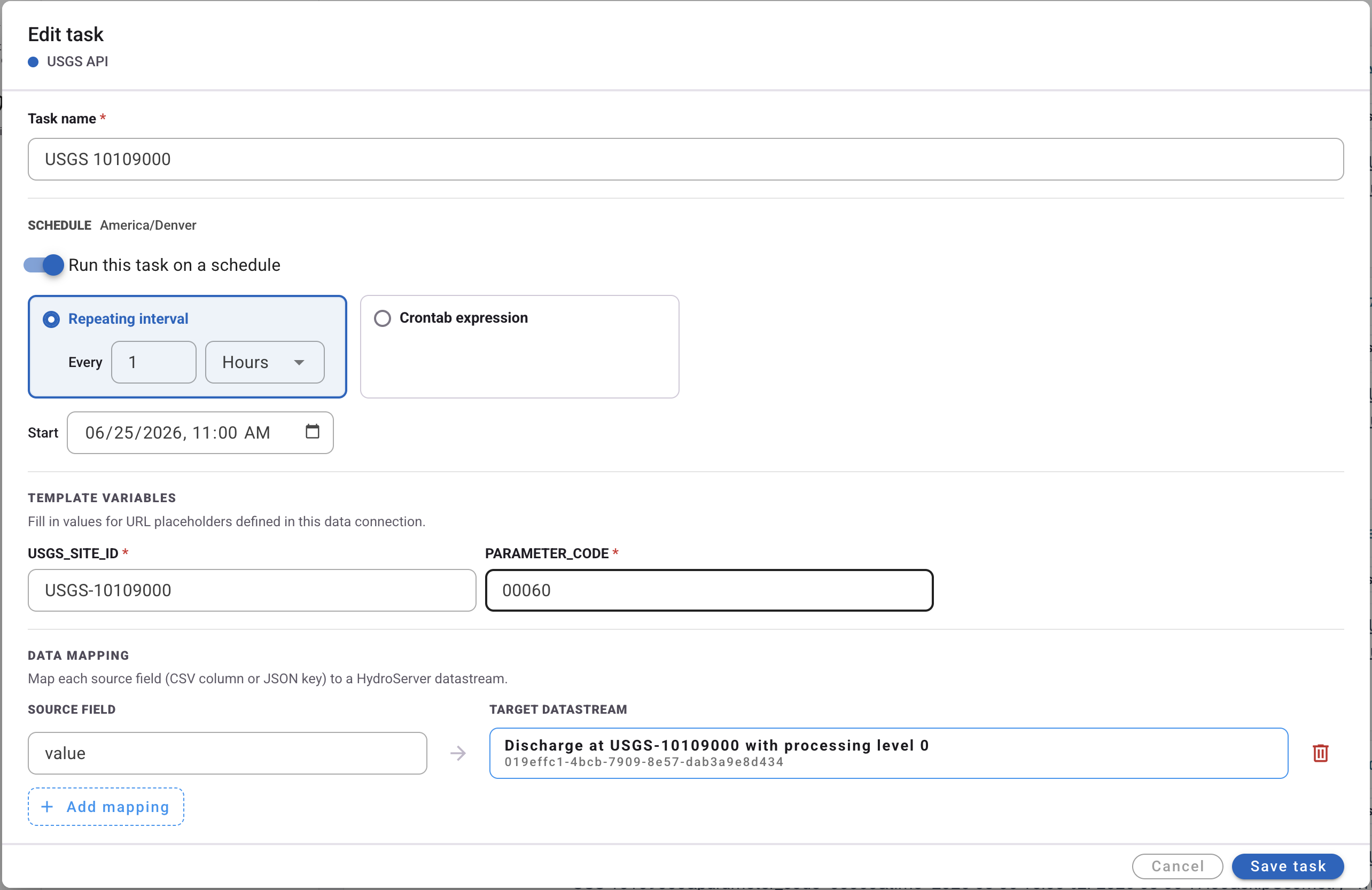
One ingestion task can load data from more than one source data column into datastreams in HydroServer. To create a source data file column --> HydroServer datastream mapping, first set the Source Field name and then select a Target Datastream from the drop down. If you want to add more than one column mapping, you can click the Add mapping button near the bottom of the form.
For example, one source data file may contain data for multiple observed variables in separate columns:
Stage
Discharge_cfs
WaterTemp_PT
Cond
These can be mapped to different datastreams in HydroServer:
Stage → Test Stage (cm) - Raw data
Discharge_cfs → Test Discharge (cfs) - Provisional data
WaterTemp_PT → Test Water Temperature (C) - Raw data
Cond → Test Conductivity (ms/cm) - Raw data
This is useful when one remote datalogger file contains many columns of sensor data from the same station.
Saving the Task
After entering the task name, schedule, and mappings, click Save task. The task will appear under the selected data connection.
5. Example 2: Ingesting Data from USGS
HydroServer's Job Orchestration System can ingest data directly from API data sources. Data returned by an API can be in either CSV format (see above) or JSON format. As an example, below we walk through loading data from the United States Geological Survey (USGS) using a USGS Water Data Services URL. This is useful for loading USGS streamflow, gage height, water temperature, or other time-series data into a HydroServer datastream.
For USGS daily values, enter the following URL in the Source URL field when creating a new data connection, as described in Section 3. This example URL retrieves one month of daily discharge data for USGS site 10109001.
https://waterservices.usgs.gov/nwis/dv/?format=rdb&sites=10109001¶meterCd=00060&startDT=2024-01-01&endDT=2024-01-31&siteStatus=allCommon USGS Parameter Codes
| Parameter Code | Variable | Unit |
|---|---|---|
00060 | Discharge / streamflow | cubic feet per second, cfs |
00065 | Gage height / stage | feet |
00010 | Water temperature | degrees Celsius |
00095 | Specific conductance | microsiemens per centimeter |
00300 | Dissolved oxygen | milligrams per liter |
00400 | pH | standard units |
For example:
parameterCd=00060means the requested data are discharge values.
For this USGS data connection, a single column of data will be returned that can be mapped to a datastream in HydroServer using the same procedure described above.
Using Placeholder Variables in URLs for Data Connections
You can set up the data connection URL to a file or API using placeholder variables that are set when a task that uses that data connection is run. For the USGS example above, placeholder variables can be injected into the URL using curly braces:
https://waterservices.usgs.gov/nwis/dv/?format=rdb&sites={USGS_SITE_ID}¶meterCd={PARAMETER_CODE}&startDT={START_DATE}&endDT={END_DATE}&siteStatus=allThis URL contains multiple parameter placeholders within curly braces that must be set to retrieve specific data.
| Placeholder | Description |
|---|---|
{USGS_SITE_ID} | USGS monitoring site ID |
{PARAMETER_CODE} | USGS variable or parameter code |
{START_DATE} | First date of data to load |
{END_DATE} | Last date of data to load |
When you put placeholders in curly braces in the URL, HydroServer will automatically detect them and provide options for setting those placeholders. For example, you can define placeholder variables per task. This is useful for values such as USGS_SITE_ID and PARAMETER_CODE because multiple tasks can use the same data connection while retrieving data for different USGS stations or parameter codes.
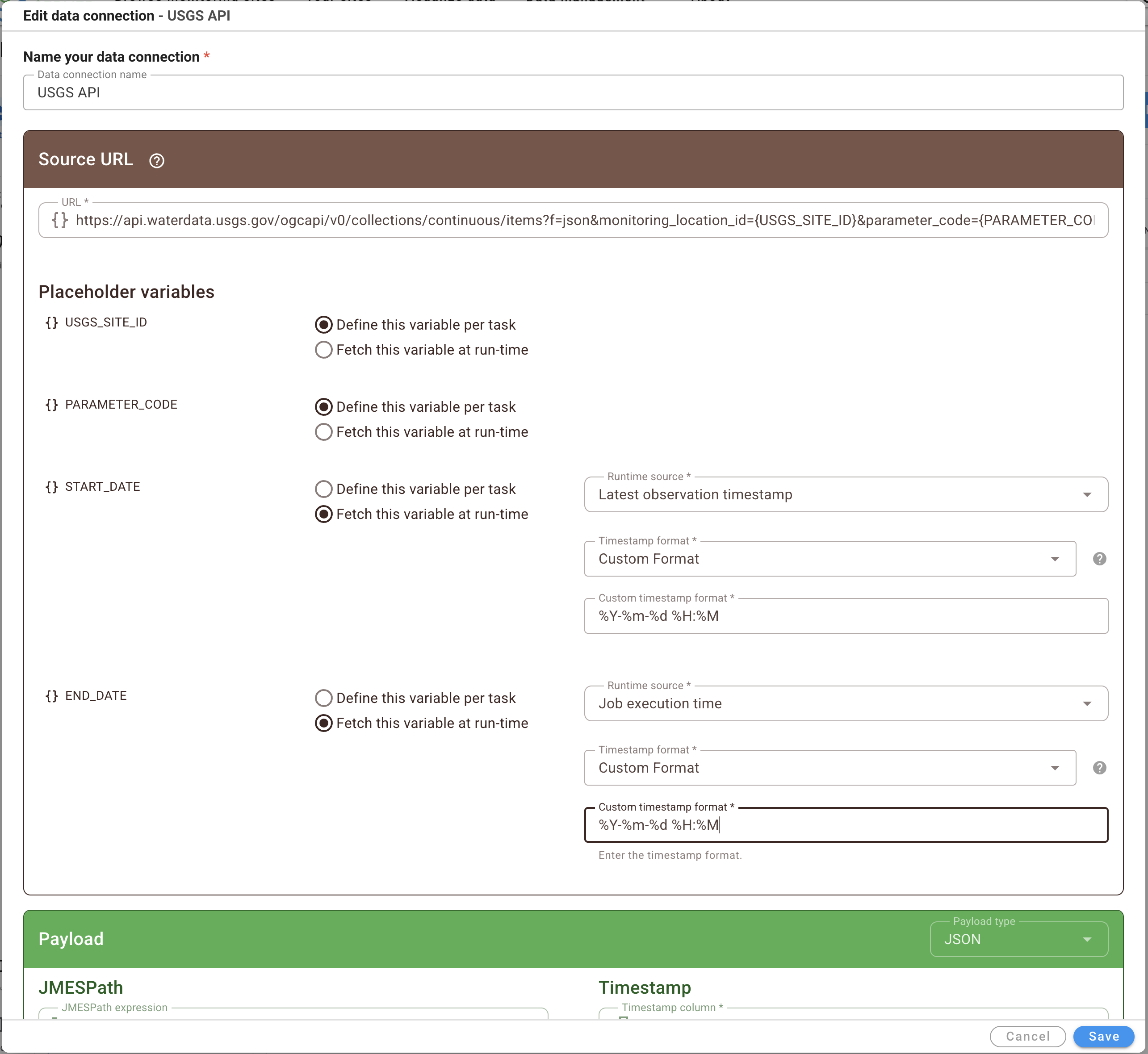
If you choose the "Define this variable per task" option, when you create a task that uses that data connection, the task will expose that setting for you to enter a value that will be used by that task. The following example shows a task that uses the data connection created with the URL above to retrieve data for a particular USGS gage and parameter code. Template variables for USGS_SITE_ID and PARAMETER_CODE are shown on the task configuration form.
Retrieving Data from APIs that Use a JSON Data Format
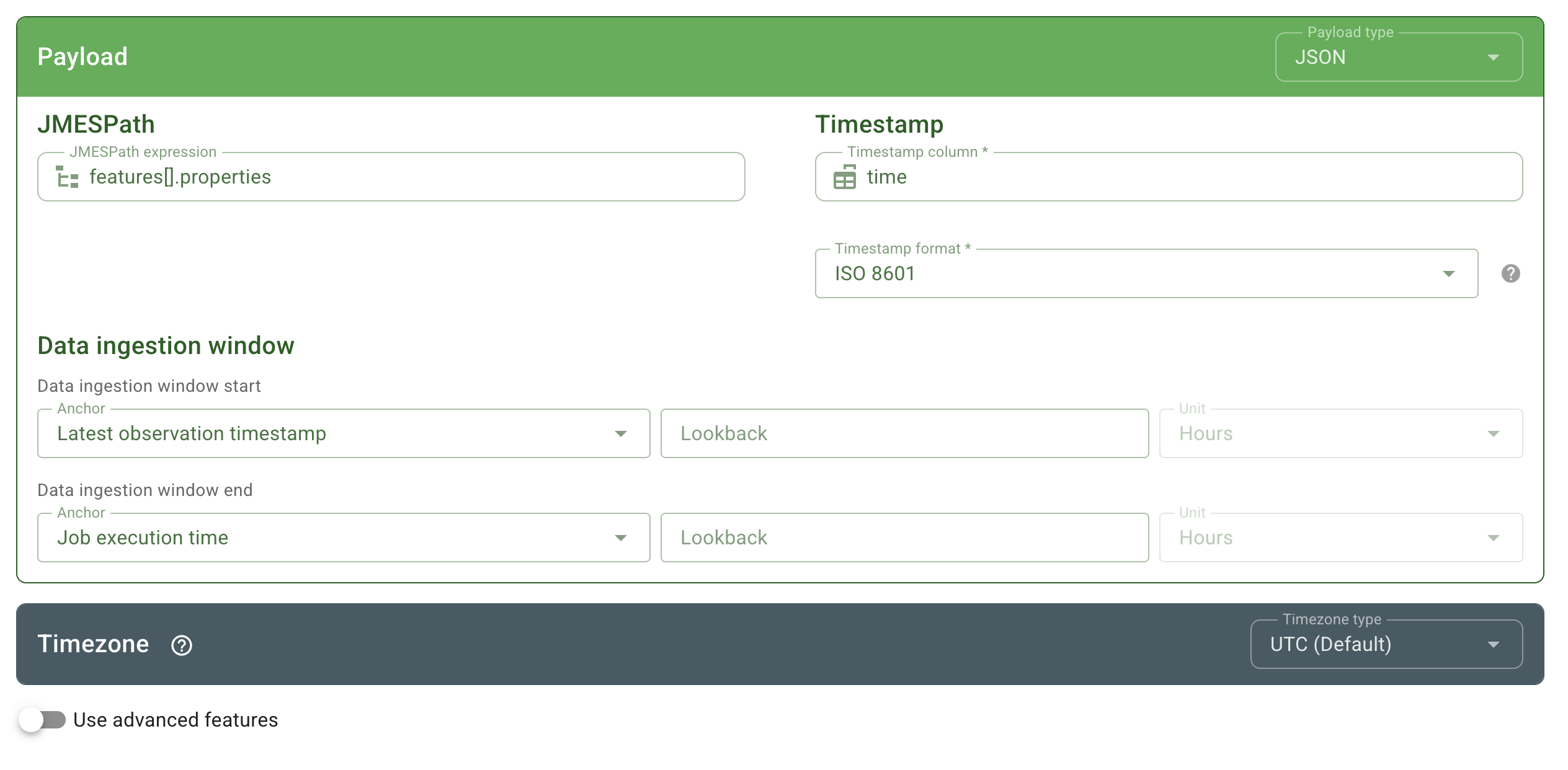
When retrieving data from an API, you need to specify the type of payload returned by the API endpoint (i.e., CSV or JSON) in the "Payload" section of the data connection form. Where the API returns data in JSON format, you need to provide some information so that the data connection knows how to parse the JSON that is returned:
- JMESPath: this is the path to the data values within the JSON data structure. JMESPath is a query language for JSON data that allows you to extract and transform elements from a JSON document. See https://jmespath.org/ for information on building JMESPath expressions.
- Timestamp: Like CSV file payloads, you also need to specify the name of the element in the JSON payload that contains the timestamp values.
- Timestamp format: As with a CSV payload, specify the timestamp format.
- Data ingestion window: These options allow you to specify a starting date for data ingestion and an ending date for data ingestion. For example, by specifying a starting date, any data in the database already after that date will be replaced by what is newly retrieved. By setting an ending date, any data in the response after that date will be ignored and not added to the database. These settings are useful when loading data from data sources where data values may change. For example, data values may be transitioned from provisional to approved over time and you want to load the latest data, but reload data when the values have been approved.
- Timezone: Specify the timezone associated with the timestamps in the JSON payload.
Advanced Features
Advanced features for a data connection that uses a JSON payload are the same as those described above for a CSV payload.
6. Run a Data Ingestion Task
To test a data ingestion task that you have configured, click the Run now button near the right side of the tasks' row in the list of tasks.
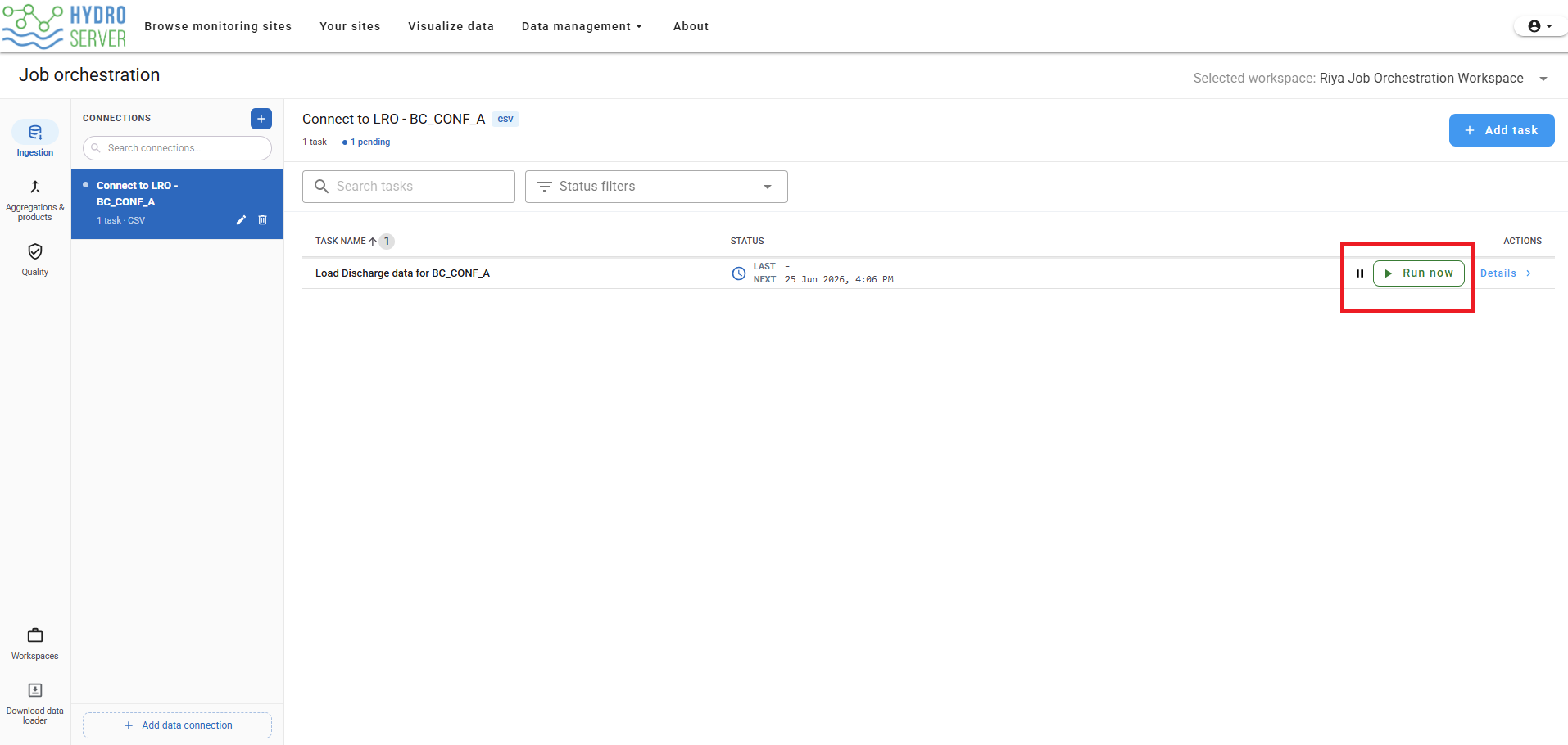
HydroServer will extract the source file, parse the configured timestamp and source columns, and load the mapped values into the selected target datastreams. If the task succeeds, you will see a green status indicator next to the task and a message showing how many observations were loaded.
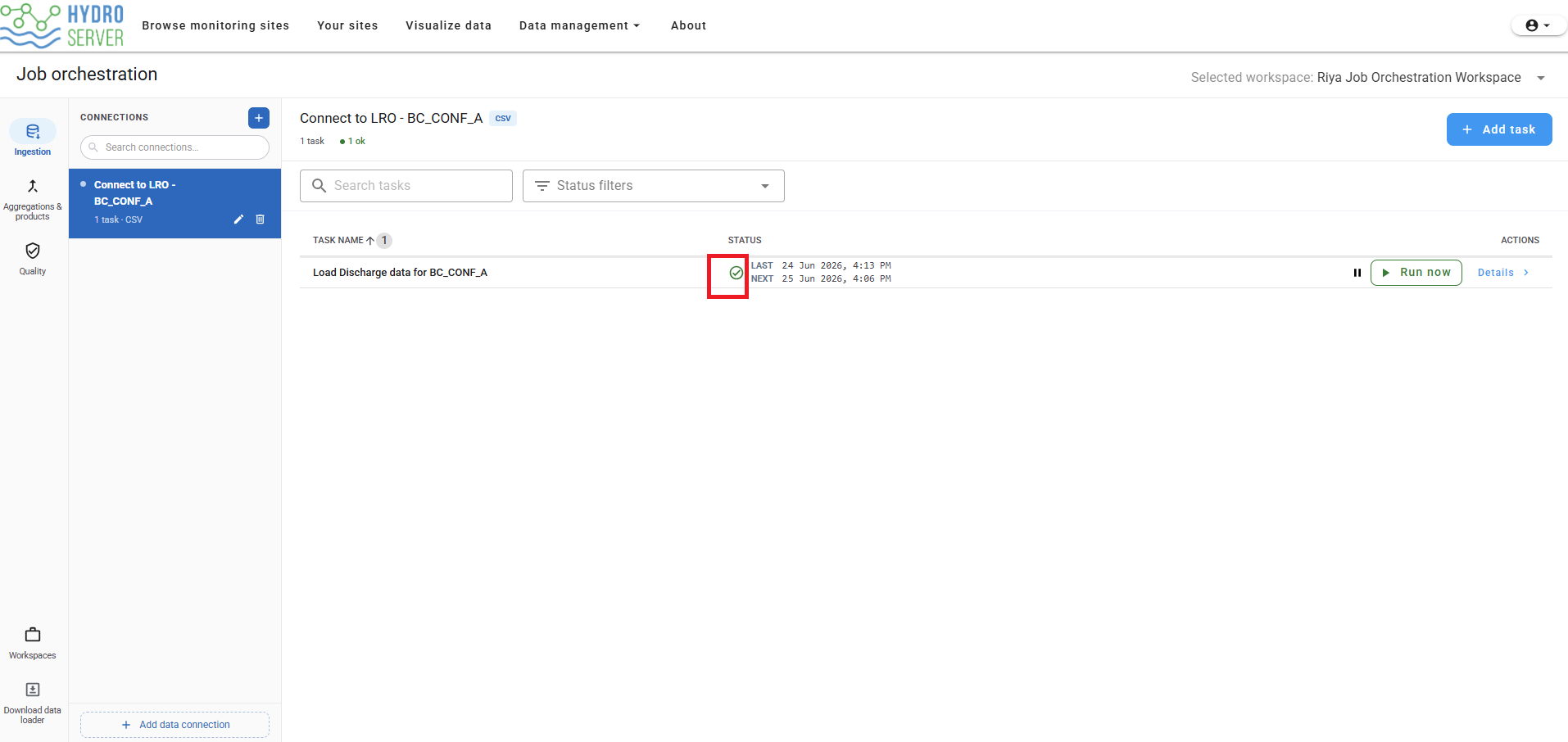
If the task does not succeed, the task status may show Needs attention or another warning. You can click on the "Details" link at the end of the task's row in the table to see additional information about the task run or any error messages.
NOTE: Use the status filter at the top of the task table to review failed task runs.
7. View Run Details
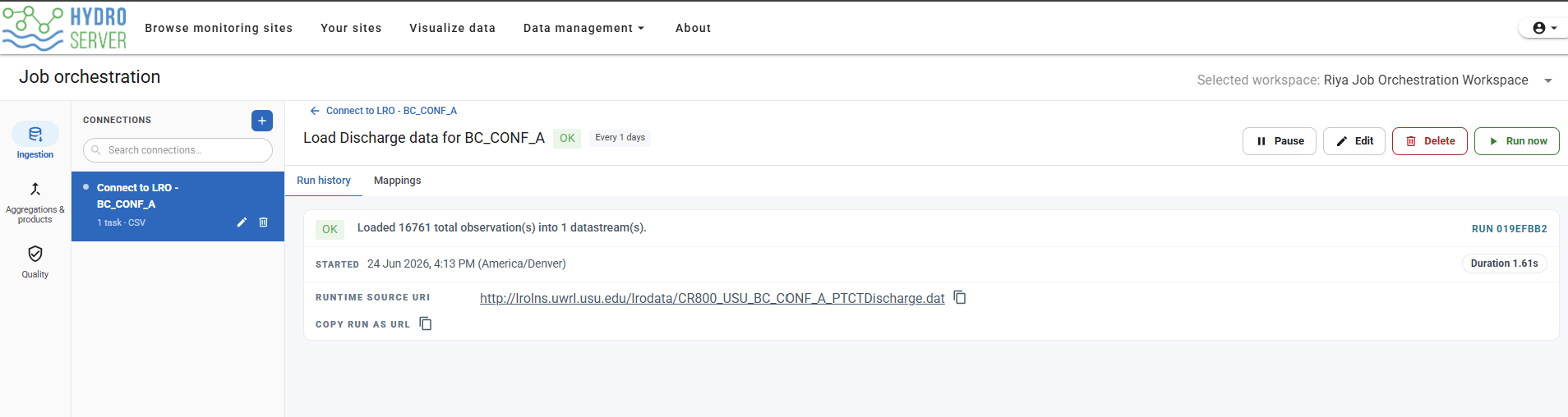
Click Details on the row for a task run to view more information about that task and to view the log information about its runs.
The run details include:
- Number of observations loaded
- Runtime source URL
- Start time
- Duration
- Run status
8. Verify the Loaded Data
After the task runs successfully, go back to the site details page and check the target datastream.
Confirm that:
- The datastream has observations
- The latest observation looks reasonable
- The units match the source column
- The timestamps are correct
- The number of observations is reasonable for the source file