Job Orchestration System: Automated Data Monitoring and Quality Testing
Data quality monitoring tasks can be set up within HydroServer's Job Orchestration System to automatically check existing HydroServer datastreams for values that may be unusual, incorrect, or outside an expected range. These tasks do not create a new datastream. Instead, they monitor the values within selected datastreams and notify a list of designated people when a data quality rule is triggered or violated by incoming data.
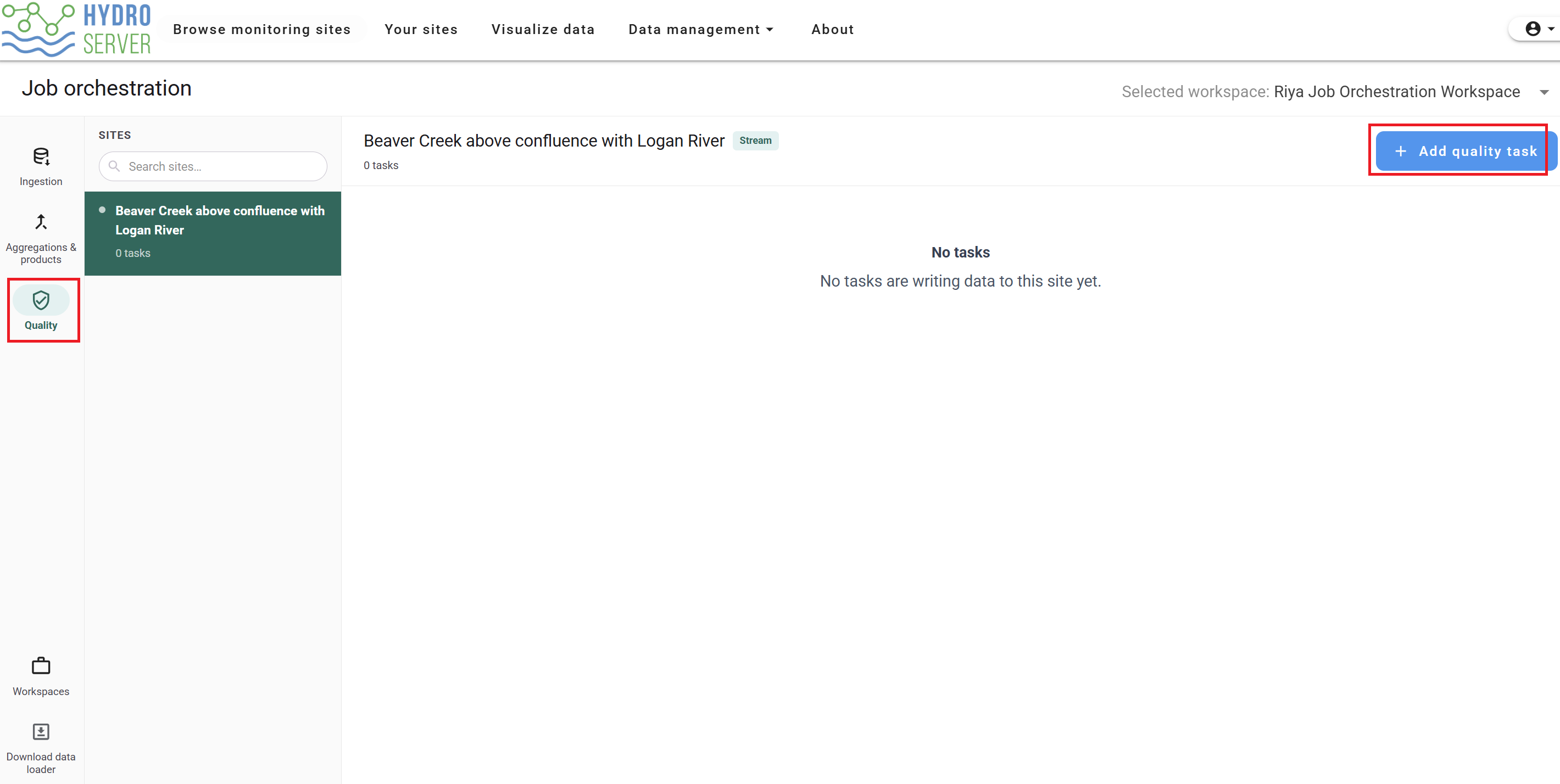
To create a data quality monitoring task in the Job Orchestration System, in HydroServer click the main Data management link and select Job Orchestration.
NOTE: The Job Orchestration System organizes tasks by Workspace. Before attempting to create new tasks, ensure that you have selected the correct workspace at the top of the Job Orchestration System page.
Then, go to the Quality section in the Job Orchestration System by clicking the Quality icon in the leftmost navigation rail. Data quality monitoring tasks are organized by monitoring site. You can set up any number of tasks per site. Select the site where you want to set up a monitoring task, then click Add quality task.
In the "Create quality monitoring task" form, enter a clear task name and description so users can understand what the task is checking. In this example, the task is named Checking range of discharge, and it monitors the daily average discharge values for the BC_CONF_A site. Add one or more email addresses under "Notification recipients" so HydroServer can send an alert if the rule is triggered. Recipients do not have to be HydroServer users.
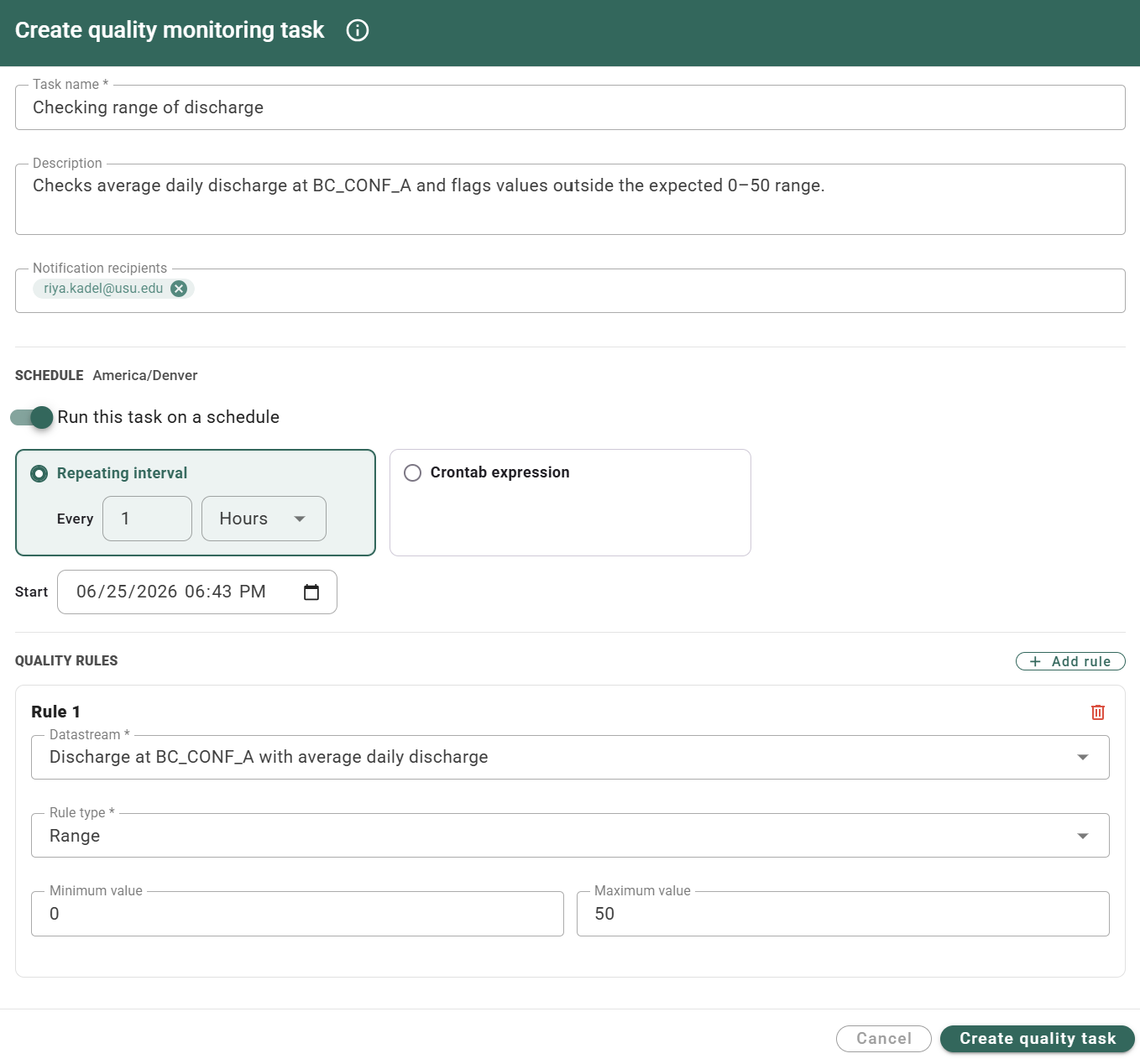
Next, configure the schedule for the task. In this example, the task is set to run every 1 Hour, starting on 06/25/2026 at 06:43 PM in the America/Denver time zone. The schedule controls how often HydroServer checks the selected datastream for values that do not meet the quality rule.
Under Quality Rules, select the datastream that should be monitored. In this example, the rule is applied to Discharge at BC_CONF_A with average daily discharge. The rule type is set to Range because the goal is to check whether discharge values stay within an expected range. The rule type can also be changed using the dropdown menu depending on the type of quality check needed. Here, the minimum value is set to 0 and the maximum value is set to 50, so any value below 0 or above 50 will be flagged for review and a notification will be sent to the list of email addresses. After all settings are complete, click Create quality task.
The supported rule types include:
- Range: Check incoming data values to ensure that they fall between user-designated minimum and maximum values.
- Rate of Change: Check incoming data values to ensure that incoming data values do not exhibit a rate of change from previous values that exceeds a user-defined threshold value. Users can also set the time window over which the rule will operate.
- Persistence: Check incoming data values to ensure that reported values that do not change for more than a user-designated time threshold are flagged.
- Missing data: Check incoming data to ensure that new values are reported within a user-designated time window (i.e., time since the last reported observation).